
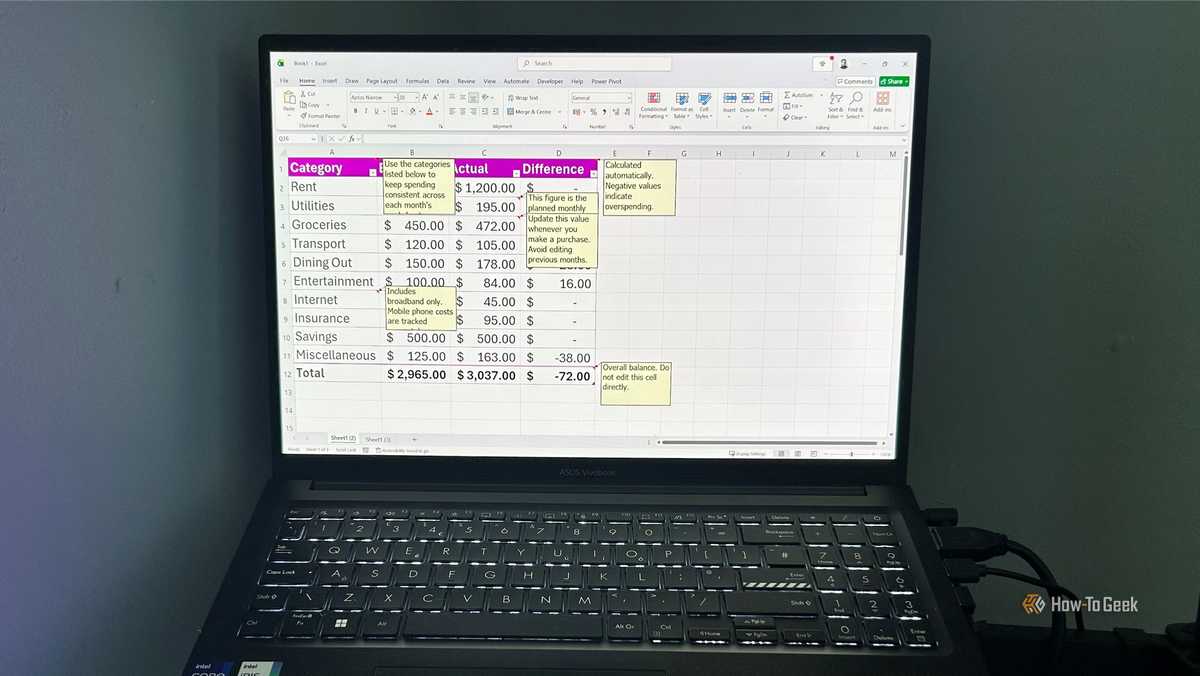

Excel's notes feature seems helpful until your worksheet is filled with red triangles and overlapping text boxes. Instead, use a little-known tool in the Data Validation menu to create clean pop-up guidance that appears only when someone selects a cell.
Excel notes can create clutter
An untidy worksheet means an untidy mind
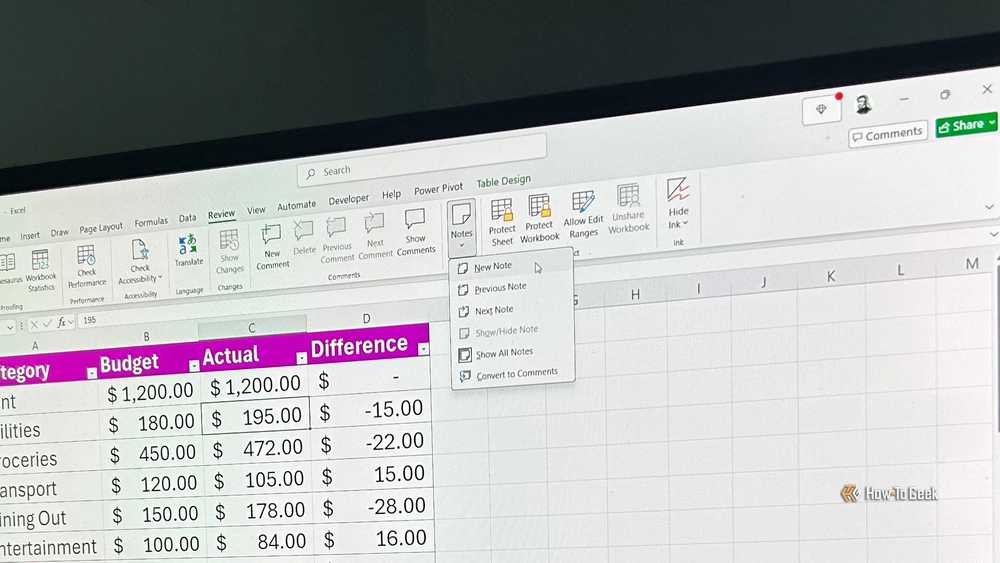
Adding context to an Excel spreadsheet is essential, especially when sharing workbooks with people who might not know what your data represents. For that reason, you might rely on cell notes to explain formulas, clarify data, or add guidance throughout a workbook.
Excel's comments serve a different purpose from notes, focusing on conversations and collaboration rather than worksheet-level guidance. This article focuses on one-way guidance within a worksheet.
However, using notes throughout a worksheet can quickly create clutter. They leave bright red indicator triangles in the corner of every annotated cell, and when you hover over or select these cells, bulky, square text boxes pop into view. If you have several annotations near each other, and multiple notes are visible, these windows overlap and block both each other and the underlying data. What's more, notes don't always behave predictably when rows, columns, or layout changes, and they often require manual resizing, which can make them feel visually inconsistent in larger worksheets.
That's why notes aren't always the best choice for simple, passive guidance.
A cleaner way to add context to cells
Simpler input, cleaner output
If you use notes to explain data, document formulas, or add context, the data validation input message feature is often a better alternative.
Although data validation is best known for restricting what people can type into a cell, its Input Message tab also lets you display helpful messages without creating any validation rules. This method displays a small pop-up prompt whenever someone selects the cell, then hides it again as soon as they move away. Each prompt uses a consistent layout with a bold title and standard body text, giving your worksheet a clean, professional look. Also, input messages don't display red indicator triangles, and the pop-up disappears as soon as the cell is deselected, avoiding the sometimes-persistent overlays created by notes. And another benefit is that the message box automatically wraps text, keeping longer instructions readable without manual resizing.
To create these prompts, follow these steps:
- Select the cell or range of cells where you want to add the message.
- Open the Data tab on the ribbon.
- Head to the Data Tools group and click the Data Validation icon.
- Open the Input Message tab at the top of the dialog box, and ensure Show input message when cell is selected is checked.
- Enter a brief title in the Title field, type your instructions into the Input message box, and click OK.
Now, your custom contextual message will appear whenever the cell or cells are selected and vanish the moment the cursor moves away.


Microsoft 365 Personal
- OS
- Windows, macOS, iPhone, iPad, Android
- Free trial
- 1 month
- Brand
- Microsoft
- Price
- $100/year
- Developer(s)
- Microsoft
Microsoft 365 includes access to Office apps like Word, Excel, and PowerPoint on up to five devices, 1 TB of OneDrive storage, and more.
Keeping track of your input messages
When invisible tools need visible structure
The biggest strength of the Excel input message hack can also be its primary hurdle: because this on-select guidance only shows up when a cell is active, it can be easy for users to miss. To fix this, you can use Excel's navigation tools to find all your hidden helper text and apply a gentle background color to those cells so users immediately know where to click.
To locate every cell containing one of these input messages at once, use this process:
- Press F5 or Ctrl+G to open the Go To dialog box.
- Click the Special button at the bottom left of the window to open the Go To Special dialog box.
- Select the radio button next to Data validation, and leave the default sub-option set to All.
When you click OK, all cells in the worksheet that use data validation are selected.


You can now add a non-intrusive design element to guide your reader's eye:
- Open the Home tab.
- Click the arrow next to the Fill Color bucket icon.
- Choose a light fill color to tint the cells.
This subtle shading ensures users recognize interactive zones without bringing back the clutter created by notes.


Another way to make input-message cells easier to manage is to apply a consistent cell style as you create them. This creates a visible pattern across your worksheet, making it easier to identify, audit, or update these cells later without relying on Go To Special every time.
Don't forget notes forever
This legacy tool still earns its place
Swapping notes for input messages when you're adding explanations or guidance is a simple way to make spreadsheets look cleaner and more professional. However, notes still have an important role in certain situations.
First, input messages use a standardized layout with a bold title and consistent body formatting. If you need more control over presentation—such as bold text or italics—notes are still the better option because they support rich-text formatting.
And second, there are some parts of Excel where data validation input messages can't be applied—such as structured table elements like total rows. Notes remain the only practical option in those cases.
Think of input messages as your worksheet's clean, consistent layer of guidance, while notes remain the flexible legacy tool for richer formatting.
If you're co-authoring a workbook with a team and need to tag specific coworkers, track timestamps, or hold ongoing conversations about a specific data point, standard threaded comments are the right tool.
Cleaner spreadsheets don't stop at input messages
Using input messages instead of notes removes visual clutter while keeping guidance anchored directly to each cell. But notes aren't limited to cells on the grid or comments in a side pane. If you want to make your workbooks even easier to understand and maintain, spend half an hour getting to know Excel's N function, which lets you add comments to formulas to keep them well-documented.